
WordPress
How to Add Google Reviews to WordPress
Install a live Google review widget without an API key, then add it to Gutenberg, Elementor, Divi, or the Classic Editor.


The Short Answer
To add Google reviews to WordPress:
- In wp-admin, go to Plugins → Add New Plugin.
- Search for RevuKit – Widgets for Google Reviews.
- Select Install Now, then Activate.
- Open RevuKit in the WordPress admin menu.
- Search for your business and preview a widget with your real reviews.
- Choose a design, adjust its appearance, and connect a free account to publish it.
- Copy the generated shortcode into a page—or set a compact widget to float on every page.
That is the quickest route because it requires no Google API key, Google Cloud project, or custom code. You can view the free plugin on WordPress.org or compare its designs and plans first.
What You Need Before You Start
You only need:
- A WordPress site where you can install plugins
- A public Google Business Profile
- At least one Google review to display
- About five minutes
You do not need to own the Business Profile login merely to preview its public reviews. You also do not need a Google Places API key when you use RevuKit.
If your business does not appear in search, check that its Google Business Profile is live and complete. Our business search troubleshooting guide covers new listings, service-area businesses, duplicate profiles, and indexing delays.
Method 1: Use the RevuKit Google Reviews Plugin
For most WordPress sites, a dedicated plugin is the best balance of simple setup, live reviews, design control, and easy placement.
1. Install the Plugin From WordPress.org
Sign in to your WordPress dashboard and go to Plugins → Add New Plugin. Search for:
RevuKit – Widgets for Google Reviews
Choose the listing by RevuKit, click Install Now, and then Activate.
Installing from the dashboard is preferable to uploading a ZIP because WordPress handles the directory installation and future updates for you. If dashboard installation is disabled by your host or site administrator, download the plugin from its official WordPress.org page and use Plugins → Add New Plugin → Upload Plugin.
2. Open RevuKit and Find Your Business
After activation, select RevuKit in the wp-admin menu. Search by your exact business name or address, then choose the matching Google Business Profile.
Use the exact name shown on Google Maps. If several businesses share the same name, add the city, street, or neighbourhood to your search.
3. Preview Your Reviews in Every Design
RevuKit previews your real rating and reviews before you create an account. This matters: a layout that looks good with sample text can feel completely different with your customers' review lengths and profile photos.
There are 15 designs, from compact rating badges to carousels, grids, masonry walls, and a layout with an AI review summary. Every design is available on every WordPress plan; the AI-generated summary itself is a paid-plan feature.
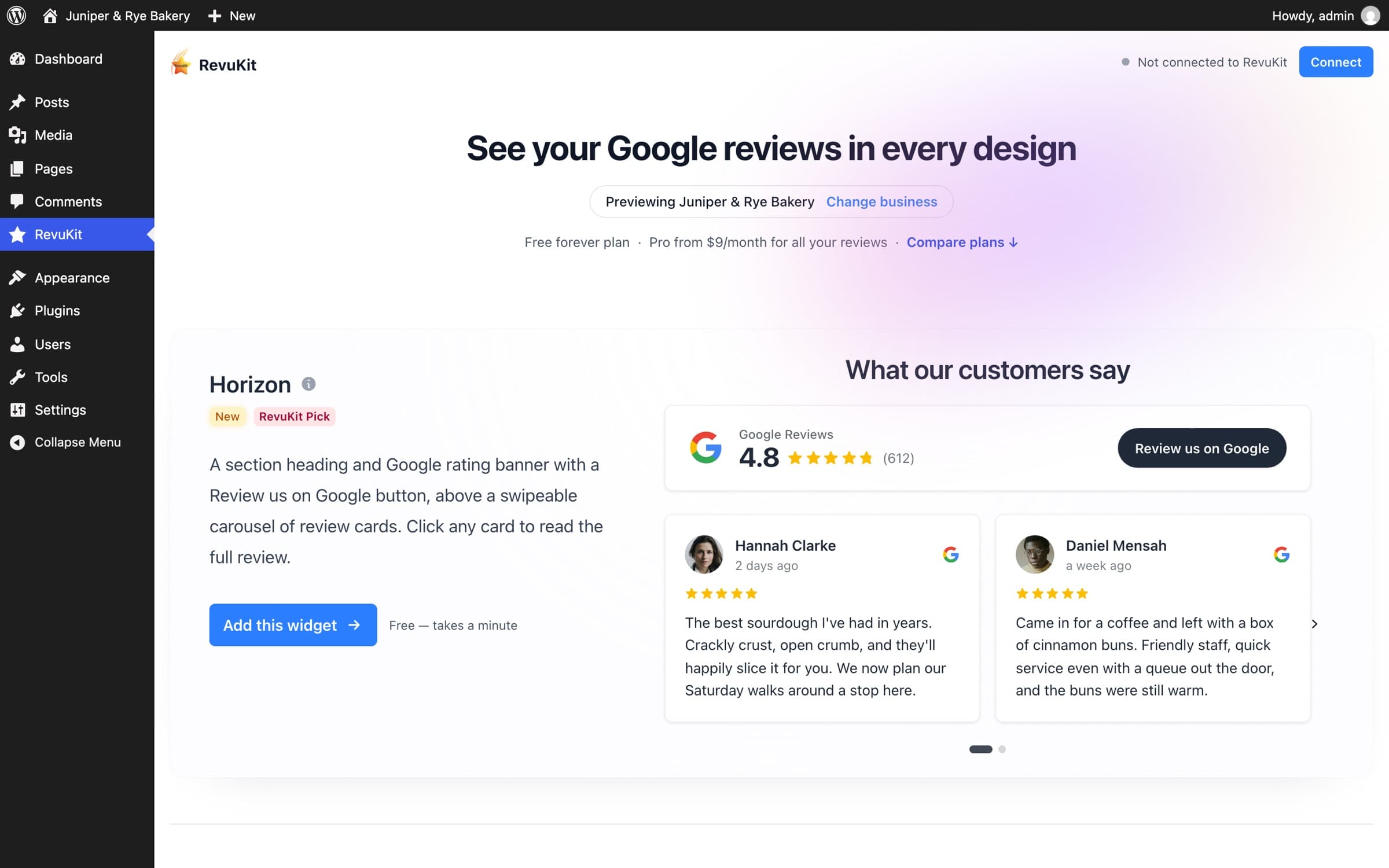
Choose the layout by the job it needs to do:
| Goal | Best widget type | Good placement |
|---|---|---|
| Add instant credibility | Compact rating badge | Hero, header area, or beside a primary CTA |
| Answer buyer hesitation | Review carousel | Before a form, booking button, or pricing section |
| Build a dedicated proof section | Grid or masonry wall | Homepage, service page, or reviews page |
| Summarize common praise | AI summary with reviews | High-intent service or landing page |
If you are unsure, start with one compact rating near the top of the page and one fuller review section near the main conversion action. You can refine the placement after seeing the page as a visitor.
4. Match the Widget to Your WordPress Theme
Choose a light or dark theme, or set your own colours, corner radius, and shadow. Aim for visual continuity rather than making the widget louder than the rest of the page.
Check contrast as you customise. Review text and star ratings should remain easy to read on both desktop and mobile, including inside darker themes and coloured sections.
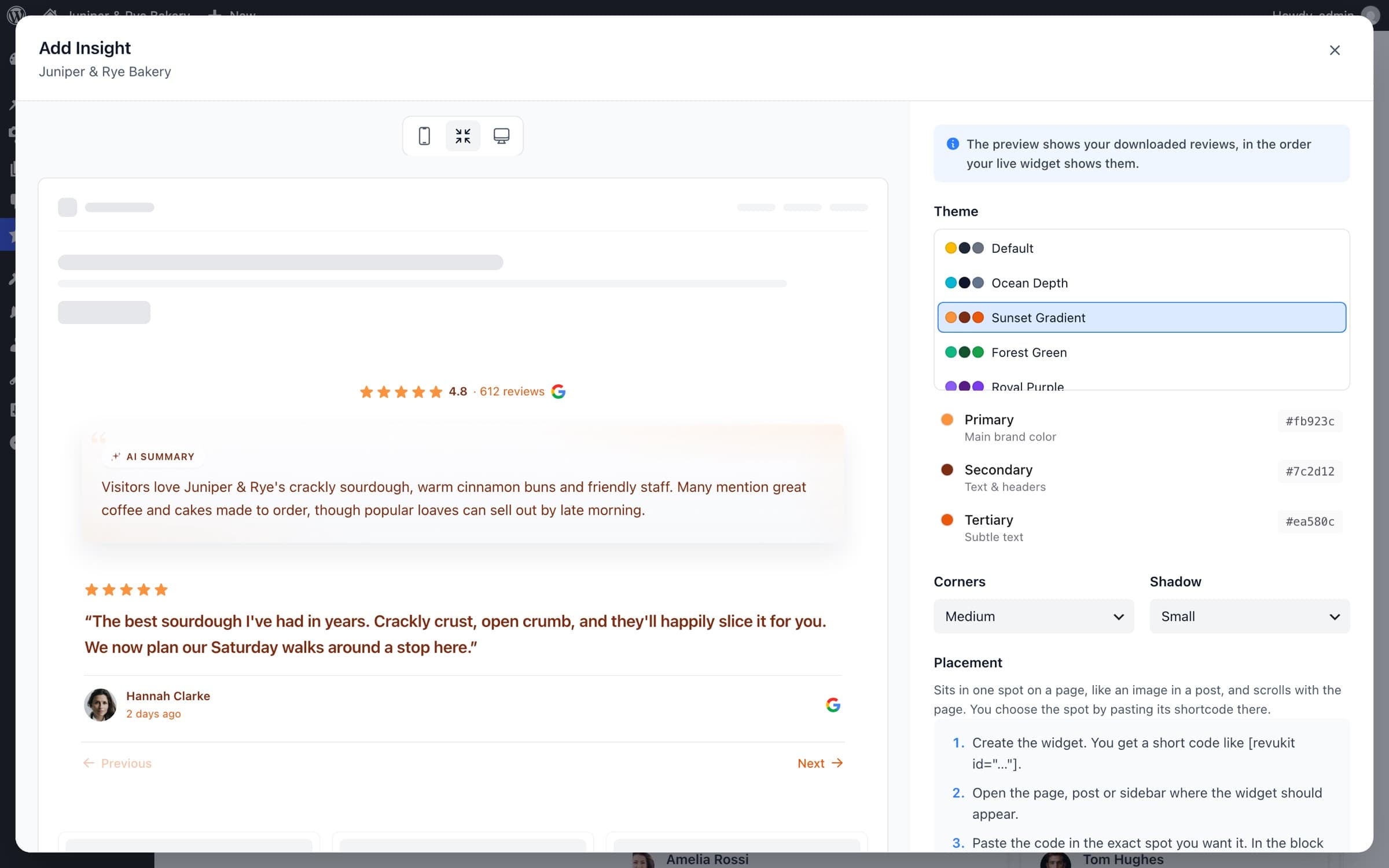
5. Choose Inline or Floating Placement
An inline widget sits inside the page content. It is the right choice for carousels, grids, review walls, and any section that should move naturally with the page.
A floating widget stays in a corner of the browser window. RevuKit's compact designs can be floated, positioned away from the screen edges, hidden on phones if needed, and shown across the whole site without placing a shortcode on every page.
Use one or the other deliberately. A large inline review section plus multiple floating badges usually creates more distraction than trust.
6. Connect a Free Account and Publish
You can browse designs and preview your reviews before signing up. When you select Add this widget, connect an existing RevuKit account or create a free one, approve the WordPress connection, and finish publishing.
The plugin is free, and the RevuKit Free plan includes all 15 WordPress designs, five recent reviews, and 250 widget views per month. RevuKit Pro is currently $9 per month and increases the allowance to 50,000 views, displays more reviews, and lets you reorder, pin, or hide reviews. See WordPress pricing for the current limits before choosing a plan.
7. Add the Shortcode to Your Page
Open RevuKit → Your widgets and copy the shortcode for the widget you created. It looks like this:
[revukit id="wi_…"]
Paste the entire shortcode, including the brackets and quotation marks. Each widget has its own ID, so copying only part of it will not work.
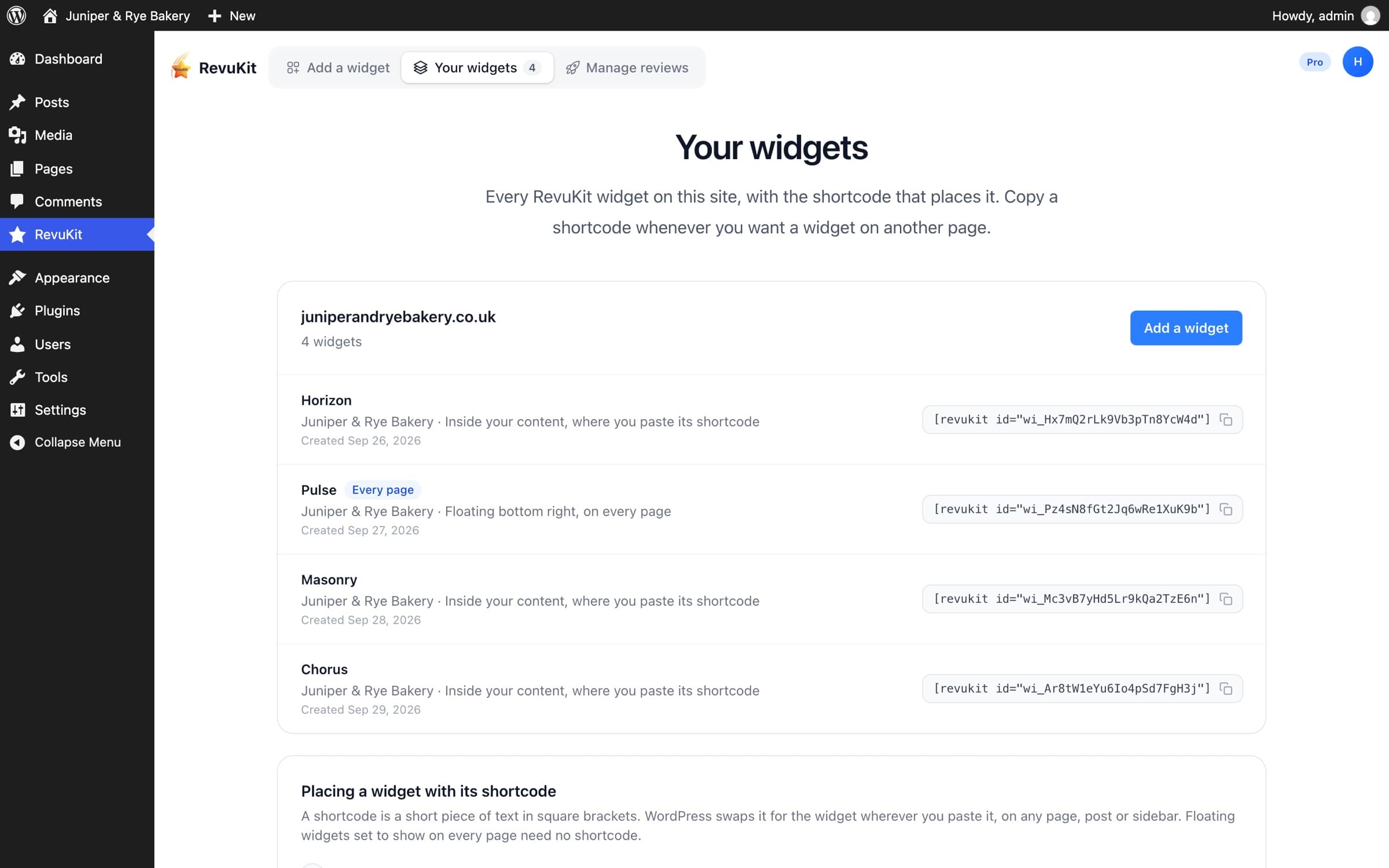
The exact placement step depends on your editor.
Add the Widget in Gutenberg (Block Editor)
- Open the page or post in the WordPress editor.
- Select the + block inserter where you want the reviews.
- Search for Shortcode. You can also type
/shortcodeand press Enter. WordPress documents this in its Shortcode block guide. - Paste the RevuKit shortcode into the block.
- Choose Preview and check the page at desktop and mobile widths.
- Select Update or Publish.
Do not paste the shortcode into a Custom HTML block. WordPress provides a dedicated Shortcode block, and it is the most reliable choice.
Add Google Reviews in Elementor
- Open the page with Edit with Elementor.
- Search Elementor's elements for Shortcode.
- Drag the Shortcode widget into the page.
- Paste the RevuKit shortcode into its field.
- Select Apply, preview the responsive breakpoints, and update the page.
Give a full review carousel or grid the full width of its section. If you place it inside a narrow column, choose a compact design or verify that the layout adapts cleanly at that width.
Add Google Reviews in Divi
Add a module that renders WordPress shortcodes, such as a Text or Code module, and paste the RevuKit shortcode into its content. Save the module, exit the visual builder if necessary, and check the public page.
The final front-end preview matters because a page builder's editing canvas does not always execute third-party widget scripts in the same way as the published page.
Add Google Reviews in the Classic Editor
Paste the shortcode on its own line in the editor where you want the widget to appear:
[revukit id="wi_…"]
Preview the page before publishing. If the editor automatically wraps the shortcode in formatting, switch to the Text view, remove the extra markup, and leave the shortcode intact.
Method 2: Add Google Reviews Without a WordPress Plugin
If you cannot install plugins—or you deliberately keep the plugin list minimal—you can use a hosted embed instead.
With RevuKit, the process is:
- Create a WordPress widget embed.
- Choose and customise a design.
- Copy the generated script snippet.
- Add a Custom HTML block to the WordPress page.
- Paste the snippet, preview the public page, and publish.
The result can look the same to visitors. The difference is management: the plugin keeps previews, widget creation, shortcodes, and your widget list inside wp-admin, while the embed method asks you to manage the snippet directly.
Advantages
- No WordPress plugin required
- Useful when plugin installation is restricted
- Works anywhere WordPress accepts a Custom HTML block
Tradeoffs
- Less convenient for managing several widgets
- Requires permission to paste script tags
- Some security or optimization plugins may strip or delay the script
For a deeper explanation of script placement and Content Security Policy issues, use our Google review widget HTML guide.
Method 3: Add Reviews Manually
You can copy selected customer quotes into WordPress as ordinary text, with permission and clear attribution. This gives you complete design control and adds no widget dependency.
It also creates ongoing work. The reviews do not update automatically, the displayed rating can become stale, and visitors cannot always verify the source as easily. Never rewrite a customer's words in a way that changes their meaning, and do not present hand-picked testimonials as a complete or live Google review feed.
Manual testimonials make sense for a tightly art-directed case-study page. For a live Google review section, a plugin or embed is normally the better fit.
Which WordPress Method Should You Choose?
| Method | Best for | API key | Automatic updates | Setup difficulty |
|---|---|---|---|---|
| WordPress plugin | Most business websites | No | Yes | Easy |
| Custom HTML embed | Sites where plugins are restricted | No | Yes | Moderate |
| Direct Google Places API | Custom development teams | Usually yes | You build it | Advanced |
| Manual testimonials | Curated case studies | No | No | Easy at first, ongoing work later |
Choose the plugin if you want the least friction inside WordPress. Choose an embed when you cannot install a plugin. Build against an API only when you have a genuine custom requirement and someone to maintain it.
What Makes a Good Google Reviews Plugin for WordPress?
If you are still choosing a plugin, compare the best Google reviews plugins for WordPress by connection method, design range, data storage, and free-plan limits before installing one. The best-known option is not automatically the best fit for your site.
Plugin-directory search results are crowded, and template count alone is not a useful way to choose. Evaluate the parts that affect your actual site.
No Complicated API Setup
Some plugins require a Google Cloud project, Places API access, billing configuration, an API key, and key restrictions. That route can be appropriate for developers, but it is unnecessary for most small-business sites.
If you want a managed setup, choose a plugin that handles the review connection without asking you to expose or maintain your own key.
Real Previews Before Publishing
Preview with your own reviews, not idealized demo content. Long reviews, short reviews, missing profile photos, and business names all affect the layout.
Responsive Design at the Container Level
A WordPress widget may sit in a full-width section, a page-builder column, or a narrow sidebar. It should adapt to the space it actually receives, not only to the browser's overall width.
Sensible Performance
Look for scripts that load only where the widget is used, execute after the main page content, and avoid unnecessary site-wide tracking. RevuKit's inline widget script ships with the plugin and loads only on pages containing that widget. A floating widget set to appear site-wide loads site-wide by design.
Clear Privacy Behaviour
Know which service provides the reviews and what the visitor's browser contacts. RevuKit widgets set no cookies. They retrieve public review data from RevuKit, and reviewer photos can load from Google's image servers. The plugin also adds suggested text to WordPress's Privacy Policy Guide so site owners can describe the integration accurately.
Review Freshness and Curation
Check how often reviews update and whether the plan lets you control which reviews appear. On RevuKit's paid plans, you can reorder, pin, and hide reviews once and use that selection across widgets for the same business.
That is useful for surfacing detailed, relevant reviews—not for pretending criticism does not exist. Your Google Business Profile remains the public source of record.
Where to Put Google Reviews on a WordPress Site
The best location is close to the decision the review helps a visitor make.
Homepage
Use a compact rating near the primary call to action, then a fuller review section farther down the page. The first provides immediate credibility; the second gives visitors evidence when they are ready to evaluate it.
Service Pages
Place reviews after explaining the service and before the quote, booking, or contact form. Reviews that mention that exact service are far more persuasive than generic praise.
Location Pages
If each location has its own Google Business Profile, show the matching location's reviews. Do not place one branch's review feed across every local landing page just because it is convenient.
Product or Pricing Pages
Use a concise review carousel or rating block near pricing objections and plan-selection actions. Keep it secondary to the information needed to choose.
Site-Wide Floating Badge
A floating rating badge can work for short sites and service businesses with a strong overall rating. Keep it away from chat buttons, cookie controls, mobile navigation, and accessibility tools.
See where to display Google reviews for page-by-page examples and conversion guidance.
Do Google Reviews on WordPress Help SEO?
They can help the page indirectly, but installing a review widget is not an automatic ranking boost.
The clearest benefits are for people: visible third-party proof can reduce uncertainty, help visitors understand what customers value, and support conversion on service and location pages. A useful, credible page is the goal.
What a widget does not guarantee:
- Higher organic rankings
- Review stars beside your homepage in Google Search
- Eligibility for local review rich results
- More visibility for your Google Business Profile
Google's review snippet guidelines say that a business displaying reviews about itself is ineligible for the review-star feature for LocalBusiness and Organization markup. This applies even when the reviews arrive through a third-party Google review widget.
That does not mean you should hide the reviews or remove valid business structured data. It means you should not install a plugin based on a promise that it will add organic star snippets for your own local business.
For broader search visibility, combine the widget with a complete Google Business Profile, useful service and location content, accurate business information, fast pages, and a steady process for earning genuine reviews. Read our guide to Google reviews and local SEO for the full strategy.
Performance Checklist Before You Publish
After placing the widget, check the public page—not only the editor preview.
- Test the page on a phone and desktop.
- Confirm review text is readable and controls can be used with a keyboard.
- Make sure the widget does not cover chat, consent, or navigation controls.
- Run one test with caching and optimization enabled.
- Check that the page's main content appears before the reviews load.
- Avoid placing several large review widgets on the same page.
- Keep one clear heading above a substantial review section so visitors understand what it is.
If performance is a priority, use a compact widget near the top and keep the larger review display lower on the page. A rating signal can establish trust without asking the largest layout to compete with the hero for initial rendering.
Troubleshooting: Widget Not Showing
The Shortcode Appears as Plain Text
Confirm the RevuKit plugin is active and that you used WordPress's Shortcode block or a page-builder element that processes shortcodes. Pasting the shortcode into a code display block will show it as text.
The Widget Shows in Preview but Not on the Live Page
Clear the page cache, CDN cache, and optimization-plugin cache. If JavaScript is being combined, deferred, or delayed, temporarily exclude the RevuKit widget script and test again.
The Widget Is Empty
Open RevuKit → Your widgets and confirm that the widget still exists and is connected to the expected business. Check that the business has public Google reviews and that the shortcode's full widget ID was copied.
The Layout Is Too Narrow
Move the widget into a wider page-builder section or choose a compact design. Review grids and carousels need more horizontal space than rating badges.
A Floating Badge Covers Another Button
Return to the widget's placement settings, switch corners, increase the edge spacing, or hide it on phones. Test against chat widgets, cookie banners, “back to top” controls, and mobile menus.
You Changed Plans but WordPress Shows the Old Plan
Open the RevuKit screen in wp-admin again so the site refreshes its account details. If it still looks wrong, reconnect the account or contact RevuKit support.
Final Recommendation
For most WordPress sites, use the plugin route: install RevuKit from WordPress.org, preview your real reviews, publish one well-matched design, and place the shortcode near a meaningful decision point.
The setup itself takes minutes. The part worth thinking about is placement. A review widget performs best when it answers a visitor's doubt just before they book, buy, request a quote, or get in touch.
Explore RevuKit for WordPress, or go straight to the free WordPress.org plugin.
Frequently Asked Questions
How do I add Google reviews to WordPress?
Install a Google reviews plugin, connect or search for your Google Business Profile, choose a widget design, and add the generated shortcode to a page. RevuKit does this without requiring a Google API key.
Can I add Google reviews to WordPress for free?
Yes. RevuKit's WordPress plugin and Free plan let you publish a widget with your five most recent reviews, all 15 designs, and up to 250 widget views per month. Paid plans raise the limits and add review curation and more frequent syncing.
Can I show Google reviews on WordPress without an API key?
Yes. A managed Google review widget such as RevuKit handles the Google data connection for you, so you do not need to create a Google Cloud project, enable the Places API, or manage an API key.
Does the Google reviews widget work with Elementor and Divi?
Yes. Copy the widget shortcode from RevuKit's Your widgets screen and paste it into Elementor's Shortcode widget or a Divi module that renders WordPress shortcodes. The same shortcode also works in Gutenberg and the Classic Editor.
Will adding Google reviews to WordPress help SEO?
It can help indirectly by making the page more useful and persuasive, but it does not guarantee higher rankings or review stars in organic results. Google does not show self-serving review rich results for a business displaying reviews about itself, even when a third-party widget is used.
Do I need a Google Business Profile?
Yes. A live Google review widget needs a public Google Business Profile with at least one review. You do not need access to the profile login just to search for the public business and preview its reviews.
Where should I put Google reviews on my WordPress site?
Place a compact rating near the main call to action and a fuller review section near a decision point, such as before a booking form, quote form, pricing section, or contact section. Use reviews where they answer doubt, not simply in the footer by default.
Why is my Google review widget not showing in WordPress?
First confirm the plugin is active, the shortcode is complete, and the widget has been published. Then clear page and optimization caches, exclude the widget script from aggressive JavaScript delay or combination, and test for a theme or plugin conflict.