

The Short Answer: Choose the Result Before the Method
To show one Instagram post or Reel, use Instagram’s native embed option for eligible public content. To show an automatically updating grid or carousel of recent posts, use a feed tool built for your website platform. Build directly on an official API only when your team genuinely wants to own authentication, data storage, token maintenance, caching, rendering, and failure handling.
Those are different products. A native post embed preserves Instagram’s interface around one item. A live-feed tool turns multiple posts into a website component. A hand-built API integration gives engineers control but also makes them responsible for the integration after launch.
Start with the page job: do you need evidence for a specific story, a current visual gallery, or a fully custom content system? Once that is clear, the technical path is usually obvious.
- One campaign post, testimonial, or Reel: native Instagram embed
- Recent posts in a responsive grid or slider: managed feed tool or plugin
- A curated gallery updated occasionally: native website CMS
- Custom filtering, data workflows, or product integration: official API build
Before You Add a Feed, Check the Source Account
A website feed magnifies whatever is already on the Instagram account. If the recent grid is off-brand, dominated by recruitment notices, or last updated months ago, embedding it will not create social proof. It will expose the mismatch more prominently.
Review the most recent twelve posts as if you were a first-time customer. Check whether they support the offer on the destination page, whether important posts work without sound, and whether captions or on-image text remain understandable at website size.
Public availability also matters. Native embedding depends on the post or profile being eligible for embedding. A private account, deleted post, restricted content, or disabled embed setting can prevent it from rendering. A feed provider may have different connection requirements, so confirm them before designing around the component.
- The account is public and the content owner approves website display
- Recent posts reinforce the website’s current offer and visual standard
- There is a named owner for the Instagram account and website feed
- The site still makes sense if the feed is temporarily unavailable
Method 1: Add an Automatically Updating Instagram Feed
A managed feed is the practical choice when new Instagram posts should appear on the website without someone rebuilding a gallery. The normal workflow is to connect or identify the source profile, choose a layout, preview real content, insert an embed or native component, and test the published page.
Connection methods vary. Some providers use Meta authorization for a professional account; others support public-profile connections under their own documented data model. Understand what the tool stores, how frequently it refreshes, what happens when access fails, and whether the published site depends on the provider at runtime.
Do the visual work with real posts rather than placeholders. Portrait videos, long captions, carousel posts, missing thumbnails, and varied colors reveal layout problems that a tidy demo feed hides.
- Connect the exact Instagram profile and confirm ownership or permission
- Choose grid, slider, or compact strip based on available page width
- Set the post count deliberately instead of loading the largest possible feed
- Preview long captions, portrait media, Reels, and carousel posts
- Publish to a staging URL and test while logged out of Instagram
- Document how to reconnect or replace the feed if the source changes
Related: RevuKit Instagram Feed for any website · Instagram feed plugin evaluation scorecard · Plugin, native embed, and custom-build tradeoffs
Method 2: Embed One Instagram Post or Reel
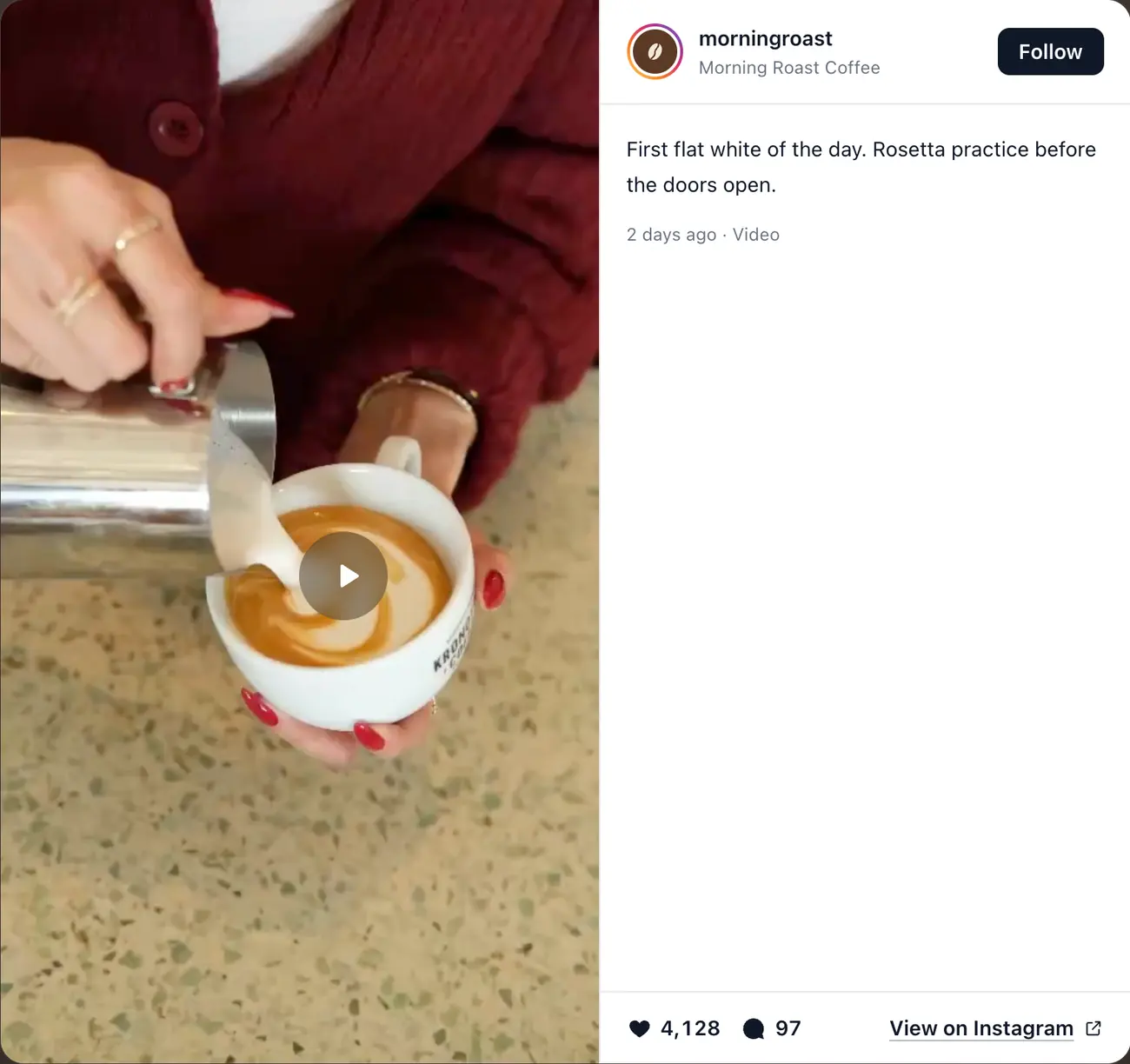
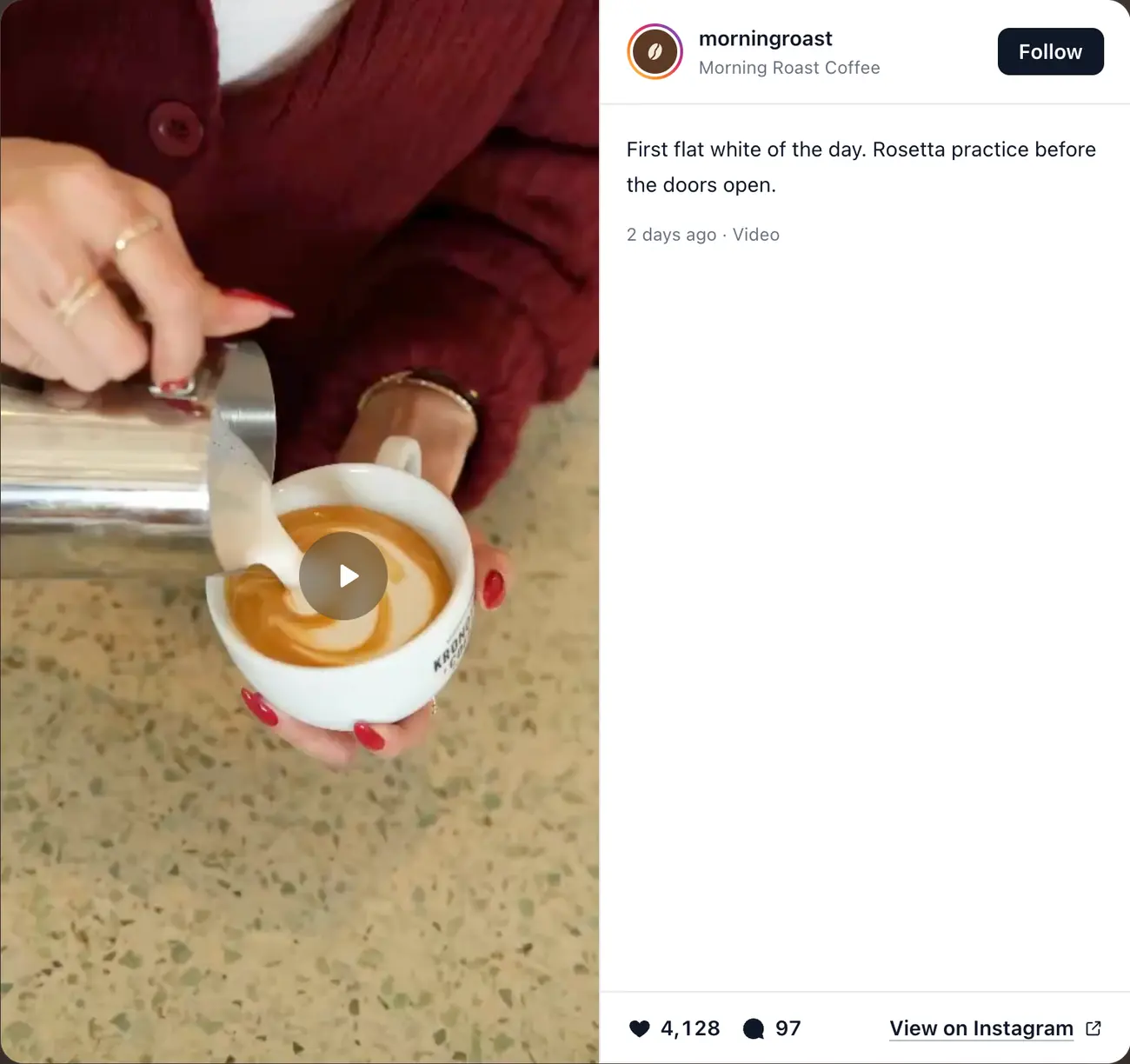
A native embed is best when a single piece of content supports a specific claim: a launch announcement inside a case study, a creator post on a collaboration page, or a Reel that demonstrates a process. Open the eligible public post on Instagram, use its embed option, and paste the supplied code into a custom HTML or embed block in your website editor.
Keep the full supplied snippet intact. Some content-management systems strip scripts or sanitize custom code; if the block remains blank, confirm that the plan permits custom code and that a content-security policy, consent tool, or browser extension is not blocking the request.
Treat the post as a third-party dependency. If the creator deletes it, makes the account private, disables embedding, or loses the account, the website block can stop working. Keep surrounding text and a normal link to the post so the page does not collapse around an empty rectangle.
Related: Meta Instagram oEmbed documentation
Method 3: Build a Curated Gallery in Your Website CMS
A manually curated gallery is often better than a live feed when the website needs only six evergreen examples. Upload approved images to the site’s media library, write meaningful alternative text, link each card to the original post when appropriate, and manage the gallery like any other website section.
This route gives you strong design and performance control, but it is not an automatically updating Instagram feed. It creates an editorial obligation: someone must replace stale items, preserve creator attribution, keep permission records, and avoid implying that the gallery is live when it is not.
Do not download and republish customer or creator content merely because it is public. Embedding, licensing, and re-uploading are different uses. Get permission for media you do not own and record what was approved.
Related: Plugin, native embed, gallery, and custom-build comparison
Where the Feed Goes in Popular Website Builders
Most website builders support either a marketplace app, plugin, code component, or custom HTML block. The publishing control changes, but the core job is the same: place the feed in the real page structure, give it an explicit width, and verify the live URL rather than trusting an editor preview.
A universal embed is the most portable option: the feed tool gives you a short HTML snippet, and every builder below has a place to paste it. RevuKit’s, for example, is two lines, a container div and an async script, and the feed draws in its own Shadow DOM so the theme’s CSS can’t restyle it. In WordPress, check whether a plugin loads assets globally or only on pages containing the feed. In Webflow and Squarespace, confirm that your plan supports custom code. In Shopify, consider theme-section behavior and the effect on product-page speed.
- WordPress: paste the embed into a Custom HTML block, or review a plugin’s script scope and update history
- Shopify: add a Custom Liquid section, which can be removed without editing product templates
- Squarespace: use a Code block on a plan that allows custom code
- Webflow: use an Embed element and check the published site, not the Designer
- Framer: use a native plugin so the feed follows the canvas and breakpoints
- React and custom sites: render the container, load the script once, and define loading and error states
Related: Where to paste the RevuKit embed on each platform · How to add an Instagram feed in Framer · RevuKit Instagram feed runtime and data disclosure
Place the Feed Where Recency Changes the Decision
The default footer strip is convenient but often too late and too disconnected from a decision. A stronger placement sits after the visitor understands the offer and before the next meaningful action. A restaurant can place recent atmosphere below the menu story and above reservations. A studio can show current work between services and enquiry. A product brand can place customer-use imagery near a collection CTA.
Avoid competing with the hero unless Instagram itself is the product. Visitors first need a clear value proposition and action. The feed should add believable recency, not make the user decode a wall of media before learning what the business does.
- Use a short heading that explains why the feed matters on this page
- Show fewer, larger items when individual detail matters
- Use a compact strip when the feed is supporting proof rather than telling the story
- Put the next website action beside or immediately after the feed
- Do not let an infinite feed become an exit ramp from the conversion path
Protect Performance, Accessibility, and Privacy
Social media is media-heavy. Loading many large images, several autoplaying videos, or a third-party script high on the page can delay the content that actually sells the offer. Start with a small post count, use responsive images, lazy-load below-the-fold media, reserve dimensions to reduce layout movement, and avoid autoplay with sound.
A visual feed also needs a usable fallback. Image meaning should not depend only on a tiny caption inside the media. Interactive cards need keyboard access and clear focus states. Video controls should be operable, motion preferences respected, and links identified as opening Instagram when that context matters.
Check the network behavior of the implementation. Native embeds and some widgets can cause the visitor’s browser to contact third-party services. If consent or regional privacy obligations apply, document the data path and configure your consent tooling rather than making a blanket “privacy-friendly” claim.
Instagram Feed Launch Checklist
Test the published page on a narrow phone, a laptop, and a slow connection. Editors frequently render third-party content differently from production, and a beautiful desktop grid can become a series of cropped portrait videos on mobile.
- Correct profile, business, and permission confirmed
- Public post links open the intended Instagram content
- Grid and modal work with mouse, keyboard, and touch
- Portrait, landscape, Reel, and carousel media have been tested
- No horizontal overflow or covered controls at mobile widths
- Loading, empty, disconnected, and error states remain presentable
- Page remains understandable when scripts or media fail
- Primary CTA remains visible and more prominent than “Follow”
- A team member owns quarterly content and connection checks
Measure Whether the Feed Earns Its Space
Do not judge the feed by likes inside Instagram. Judge its website job. Track interaction with the feed, outbound Instagram clicks, the primary conversion immediately after the section, and page performance before and after installation. Compare a meaningful period rather than reacting to a handful of sessions.
A feed can be successful even when few people click it if it helps visitors feel that the brand is current and then continue to book or enquire. Conversely, a high Instagram click rate can be harmful if it removes qualified visitors from a checkout or lead form. Interpret the numbers in the context of the page goal.
Related: Restaurant Instagram feed conversion plan · Try the Instagram Feed demo with sample posts · RevuKit Instagram Feed
Questions
- Can I embed an Instagram feed on any website?
- Most modern platforms can show a feed through a plugin, app, code component, or custom HTML block. The exact method depends on the platform, plan, source-account requirements, and whether custom scripts are allowed.
- Can I embed Instagram without a plugin?
- Yes. Instagram can provide embed code for eligible individual public content, and you can build a manual gallery in your CMS. An automatically updating multi-post feed generally needs a managed tool or a maintained API integration.
- Does Instagram provide an embed for an entire live feed?
- Instagram’s native embed is best understood as an embed for eligible public content or profiles, not a customizable website gallery. A responsive, automatically updating multi-post layout is typically supplied by a feed tool or custom integration.
- Will an Instagram feed slow down my website?
- It can if it loads many large images, videos, or blocking third-party scripts. Limit the initial item count, lazy-load below-the-fold media, reserve image dimensions, and measure the published page before and after installation.
- Do I need to log in to Instagram to add a feed to my website?
- It depends on the tool. Plugins built on Instagram’s API need the account owner to authorize access, and that access has to be kept valid. Tools that read a public profile, such as RevuKit, only need the handle, so you can add a client’s feed without their password.
- Can I show posts from a private Instagram account?
- Do not design around private content. Native embeds require eligible public content, and feed providers should clearly document which account types and authorization methods they support.
- Is it legal to display customer Instagram posts?
- Public visibility is not the same as permission to download and republish someone’s media. Native embeds preserve attribution, while re-uploading or using content in marketing may require explicit permission or a license. Get legal advice for your circumstances.
- Where should I put an Instagram feed?
- Place it where recent visual evidence reduces uncertainty—often after the offer or brand story and before a booking, enquiry, collection, or follow action. Avoid letting it obscure the primary website task.